
Smart Google Analytics
Overview
Description
ZealousWeb 'Generate PDF using Contact Form 7 Pro' plugin for WordPress facilitates an easier way to download PDF documents and open the PDF document file after the successful form submission. The 'Generate PDF using Contact Form 7 Pro' plugin allows the user to set the document file as PDF from the 'Form Setting' Page of each Contact form.
Plugin's purpose and benefits
Option to add watermark text for one or more PDF files.
Option to change the PDF Content font from the available supported fonts.
With the help of CSS Editor, the admin can add custom CSS styles for the PDF file.
The plugin facilitates the users to share and save the generated PDF files into Dropbox & Google Drive options to reduce the load on the server and optimize space.
The admin can manage the PDF File header and footer formats and page sizes such as “A4”, “A3”, “Letter” etc in the settings.
After submitting the form the users can easily download the PDF file from the downloadable pdf link.
The admin user can customize the PDF Download button for the end-users with options like opening the PDF in a new tab, downloading the PDF, or disabling the download link and just getting the PDF in Email.
Get Started
Quick setup instructions


How To Use & Features
'Generate PDF using Contact Form 7' Plugin provides an easier way to download document files in PDF format, open PDF document file or send it as an attachment after the successful form submission.
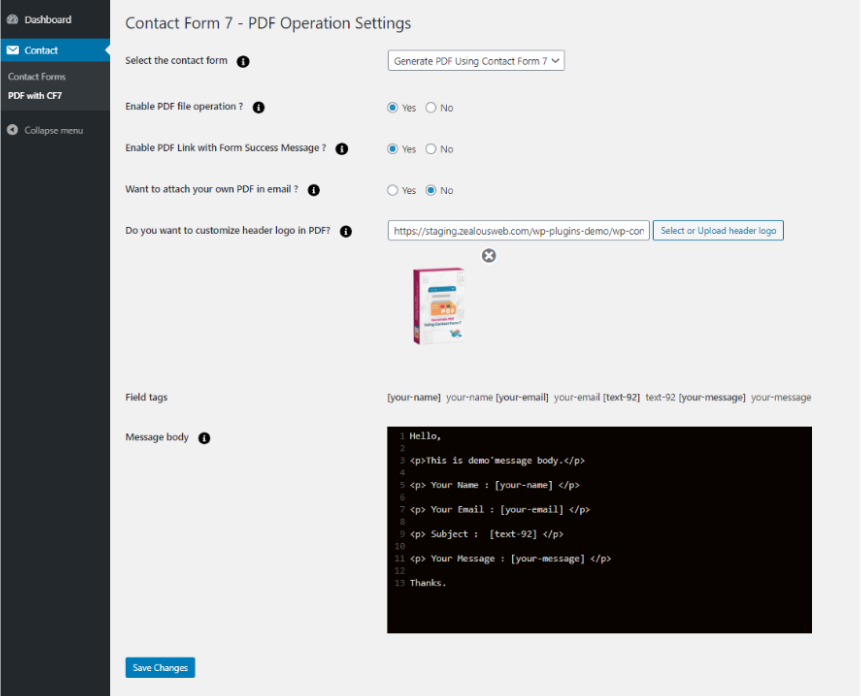
1. Select Contact Form
First, select the “Contact Form” from the dropdown where you want to do an operation.
2. Enable PDF file Operation
This is the option form ON/OFF functionality for that selected Form.
3. Attach Own PDF in Mail - Yes
Select this option if you want to attach your own PDF file with Contact Form 7 Mails.
4. Attach Own PDF in Mail - No
-
Field Tags
-
Here is the list of Fields on the selected form. You can use that field's submission data and add in custom PDF generated.
-
PDF Header Logo
-
You can upload your site logo or custom logo here which will be shown on top of the generated PDF.
-
Message Body
-
This is the main field where you can add all data which is used to generate PDF format. Here you can use HTML tags. Also, you can add your Custom HTML design with this Box which will be created as PDF in email attachments.
public function getProductType($productId)
    {
        $productType = null;a
        try {
            $productType = $this->productRepository->getById($productId)->getTypeId();
        } catch (\Exception $exception) {
            $this->logger->error($exception->getMessage());
        }

        return $productType;
    }
Get Support
FAQs
Can we install this extension using composer?
Yes, you can install this extension via composer by following these steps.
Change log
version 1.0.0
- Initial release